
Prefer a printable version?Download this guide as a PDF.
Start by Signing in to Comma Compliance
1. Go to app.commacompliance.com to access your Comma account.
Sign in with your email and password, or use the Sign In with Google or Sign In with Microsoft 365 buttons.
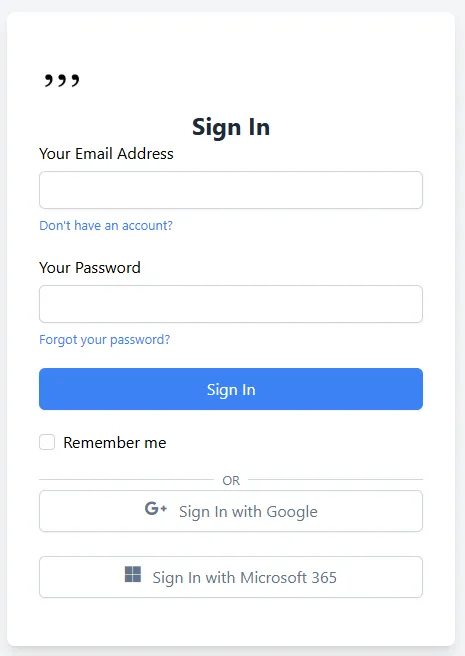
Your team may have you sign in using your existing work Google or Microsoft 365 account. Check with your administrator if you’re unsure which method to use.
Linking Your WhatsApp
WhatsApp is a personal integration — each team member connects their own account. This can be done from a personal or business device.
Before You Begin
Your administrator must enable WhatsApp for your team before you can connect. If you don’t see a Connect button, ask your admin to toggle on “Allow your team to connect” for WhatsApp in the Integrations settings.
Steps to Connect
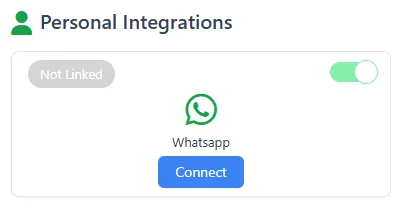
1. In the top navigation bar, click Integrations. Scroll down to the Personal Integrations section — it appears below the Organizational Integrations.

2. Click the Connect button beneath the WhatsApp tile.
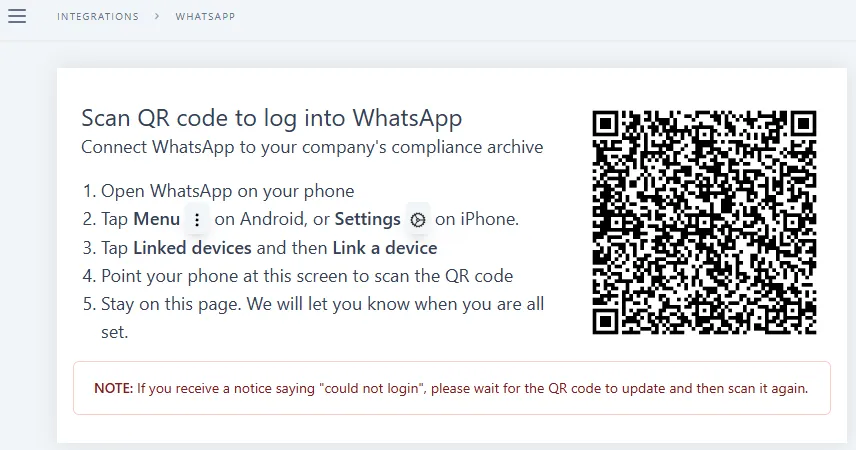
3. Comma will display a QR code.
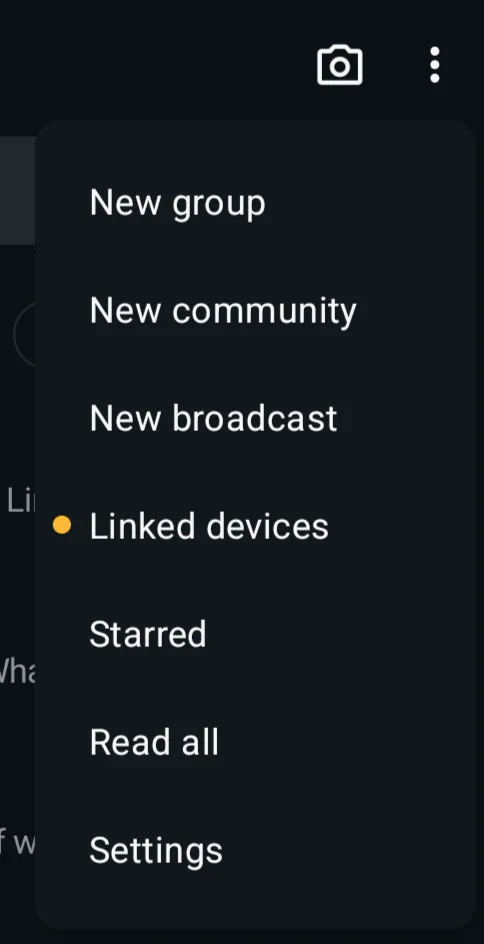
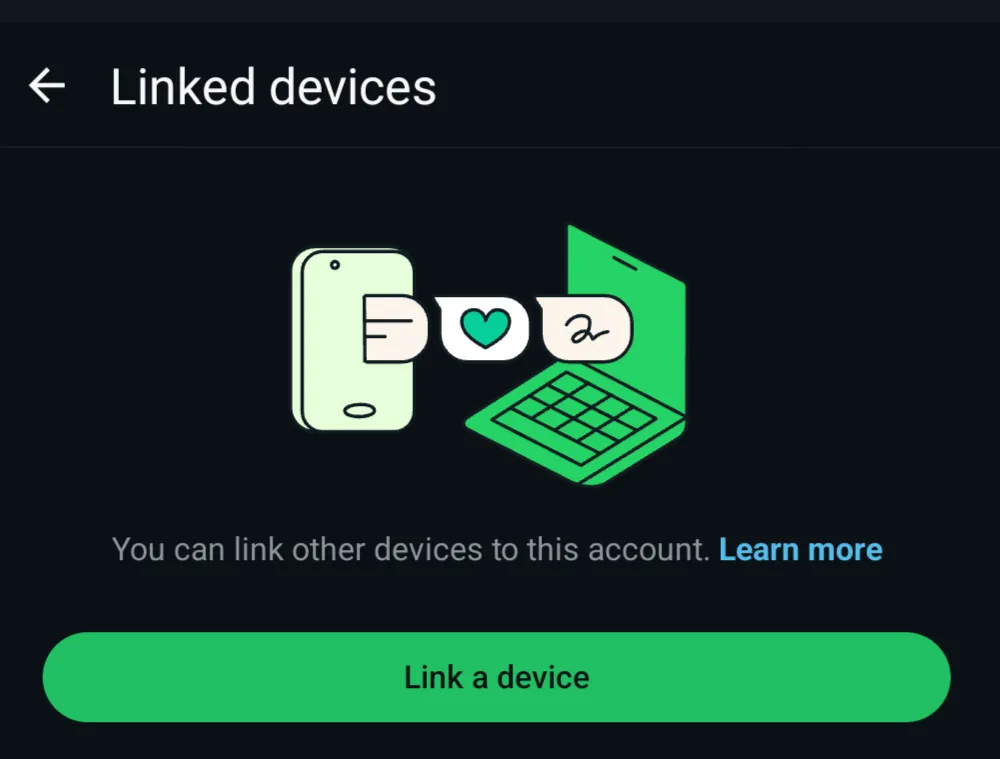
On your phone, open WhatsApp and navigate to Menu (⋮) > Linked Devices > Link a Device on Android, or Settings (⚙) > Linked Devices > Link a Device on iPhone. Point your phone’s camera at the QR code to scan it.
4. After scanning, Comma will confirm the connection. Wait a moment while it verifies by sending a test message.
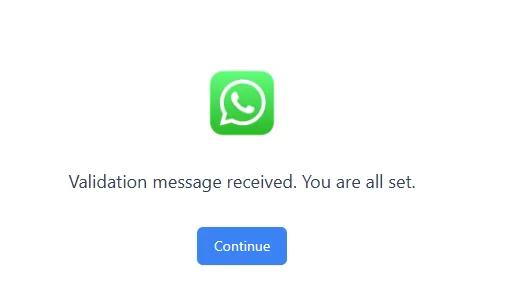
5. Once confirmed, you will see a “Validation message received. You are all set.” screen. Click Continue.
Comma Compliance will now capture and archive communications from your linked WhatsApp account.
You can continue using WhatsApp exactly as you normally would — linking your account to Comma does not change how the app works on your phone.
Multiple Devices
The Connect button stays active after linking.
If you use WhatsApp on a second device with a different phone number — such as a separate business phone — click Connect again to link that account as well.